After activating DNS management (see the "Activating the SkyDNS Manager" guide), this page is where you add, edit, and delete DNS records for your domain. This guide explains the records table, the add/edit form, and what each record type and TTL mean.
The records table
All current records for your domain are shown in a table with columns Type, Name, Value, TTL, and Priority (the last one is only used for MX and SRV records). Above the table is a search box, and clicking a column header (e.g. "Type" or "TTL") sorts the table by that column.
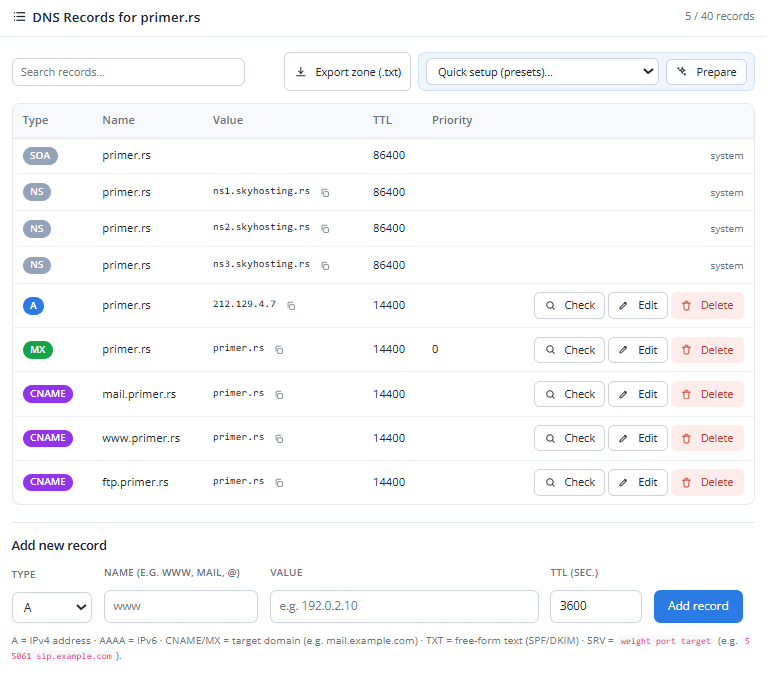
Records labeled "system" (usually NS and SOA) are part of the zone's core setup and clients cannot edit or delete them. If you see the word "locked" instead of edit/delete buttons, that means something different - an administrator has temporarily locked the zone; see the "FAQ & Troubleshooting" guide for details.
Adding a new record
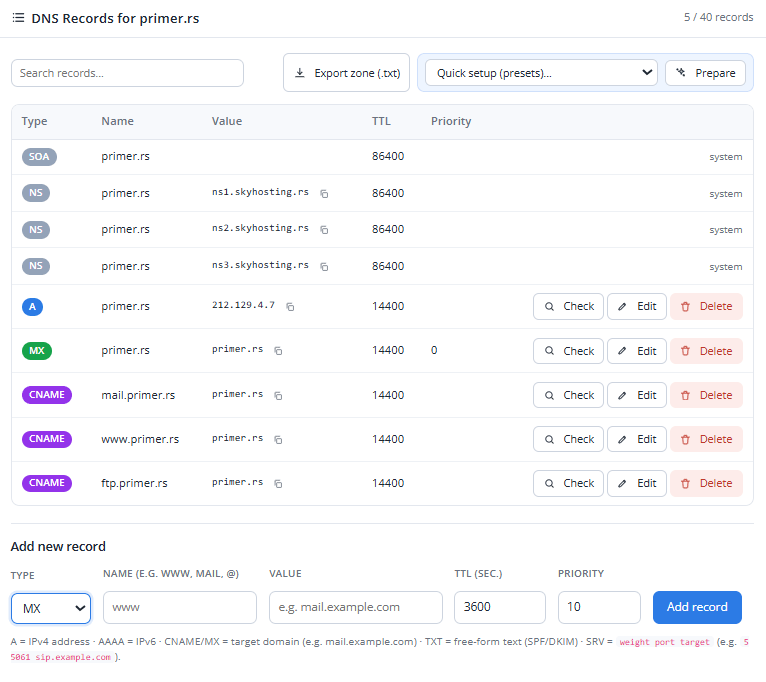
Below the table is the add-record form. Fill in the fields and click "Add record":
- Type - choose one of the allowed types (see the table below). The "Priority" field appears automatically only for MX and SRV.
- Name - the part before your domain name (e.g.
wwwormail), or@for the bare domain (no prefix). - Value - depends on the type (see the table below); the field's example text changes based on the selected type.
- TTL (sec.) - see the explanation below. Defaults to 3600.
What each record type means
| Type | Meaning | Example value |
|---|---|---|
| A | Points a name (e.g. www) to a server's IPv4 address. | 192.0.2.10 |
| AAAA | Same as A, but for an IPv6 address. | 2001:db8::1 |
| CNAME | Points a name to ANOTHER domain name (an alias) instead of directly to an IP address. | shops.myshopify.com |
| MX | Specifies the server that receives email for your domain. | mail.example.com |
| TXT | Free-form text - most often used for email verification (SPF/DKIM) or domain-ownership verification for various services. | v=spf1 include:_spf.example.com ~all |
| SRV | Points to a server and port for a specific service (e.g. VoIP/SIP telephony). Value format: "weight port target". | 5 5061 sip.example.com |
What TTL means
Editing an existing record
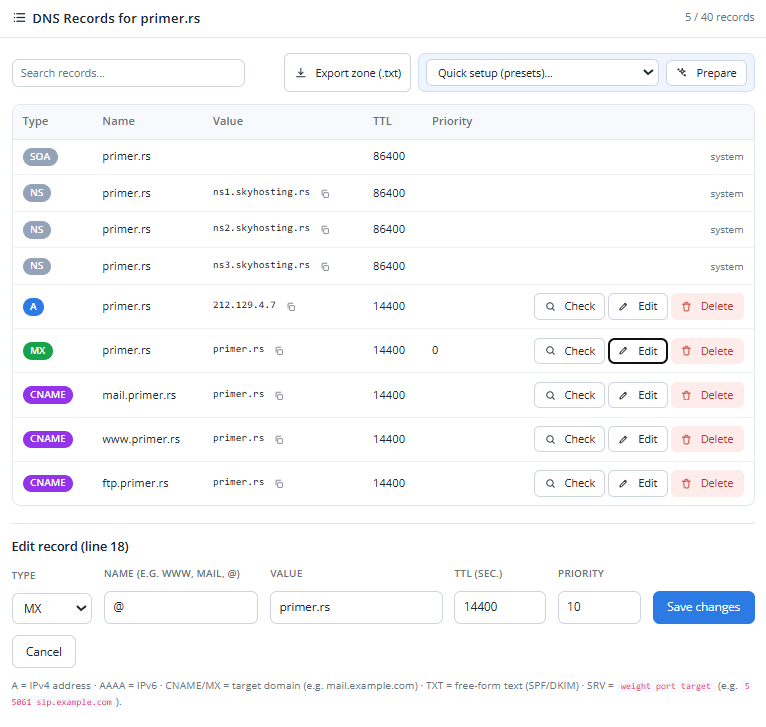
Click "Edit" next to a record - the form fills in automatically with its current values, and the button label changes to "Save changes". Clicking "Cancel" resets the form back to add-a-new-record mode.
Deleting a record
Click "Delete" next to a record and confirm in the popup. Deletion is immediate and cannot be undone - if you're not sure, copy the value first (using the copy button) before deleting.
Record limit
The "X / Y records" counter in the card header shows your current record count and the maximum for your zone. If you reach the maximum, contact support if you need more.
Exporting your zone
The "Export zone (.txt)" button downloads a text file with a snapshot of all your records - useful as a manual backup before a bigger change. Note: this file is for reference, not for automatic restoration of the zone - if you ever need to restore a previous state, send this file to support.
Next: see the "Quick Setup with DNS Presets" guide if you're setting up a well-known email or website provider, or "Checking Your DNS Changes Are Live" to verify your change is already visible on the internet.