Instead of manually entering every DNS record (see the "Managing Your DNS Records" guide), for well-known email and website providers you can use a ready-made preset - it fills in the correct records for you, with a chance to review exactly what will change BEFORE anything is applied.
How to use a preset
- On the records card, choose a provider from the dropdown (grouped into Email and Website / Store) and click "Prepare".
- A preview card opens: "Will be added" (a table of new records), "Already exists" (records skipped because they already match), and, if there's a conflict with an existing record (e.g. an old MX record from a different provider), a warning with a pre-checked box "Remove the existing conflicting records and replace them with new ones (recommended)".
- Review the list and click "Confirm and apply preset", or "Cancel" if you change your mind. Nothing changes until you confirm.
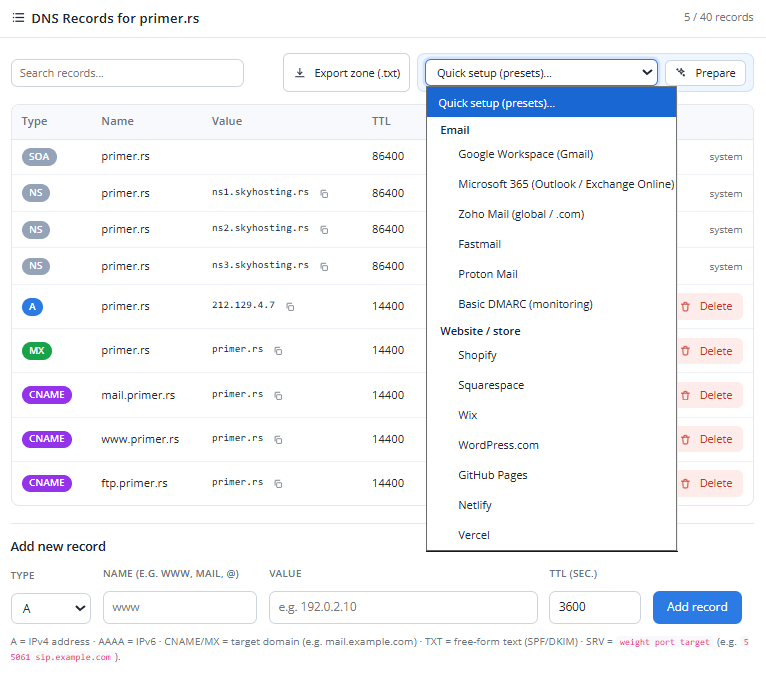
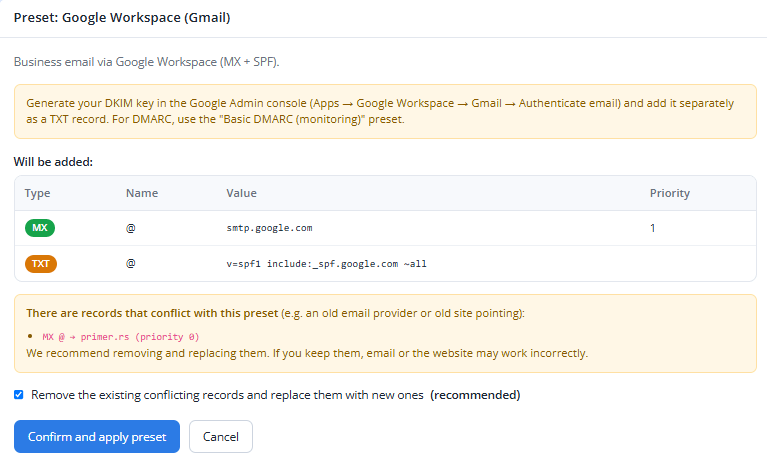
Some providers require ADDITIONAL records unique to your account (e.g. a DKIM key) that a preset can't know in advance - the note under each preset in the tables below tells you exactly what to add manually.
Email presets
| Provider | What's added | Note |
|---|---|---|
| Google Workspace | MX records + SPF | Generate your DKIM key in the Google Admin console and add it manually as a TXT record. Use the DMARC preset below for DMARC. |
| Microsoft 365 | MX + SPF + autodiscover | Teams/Skype calling may require extra records from the Microsoft 365 admin center. DKIM is enabled separately in the Defender/M365 admin center. |
| Zoho Mail (.com) | MX records + SPF | Only for the global zoho.com region - if you use the EU/IN/AU region, do NOT use this preset (MX/SPF differ). Add DKIM manually from the Zoho admin panel. |
| Fastmail | MX + SPF + 3 DKIM CNAME records | DKIM records are auto-built from your domain and included in the preset. Extra verification if requested by Fastmail's panel. |
| Proton Mail | MX records + SPF | Proton additionally requires a verification TXT record and DKIM records unique to your account - get these from Proton settings and add them manually. |
| Basic DMARC | One TXT record (_dmarc) | Monitor-only mode (p=none) - nothing gets rejected, it just collects statistics. A good addition to any email preset above. |
Website / store presets
| Provider | What's added | Note |
|---|---|---|
| Shopify | A record + www CNAME | After adding, connect the domain in the Shopify admin (Settings → Domains). |
| Squarespace | 4× A record + www CNAME | Squarespace also provides one UNIQUE verification CNAME - add it manually from the Squarespace panel. |
| Wix | A record + www CNAME | Wix sometimes requires an additional TXT record for ownership verification - add it from the Wix panel if prompted. |
| WordPress.com | A records (root domain only) | For www, add the CNAME shown in your WordPress.com domain settings (unique to your site). |
| GitHub Pages | 4× A record (root domain only) | For www, manually add a CNAME to your-account.github.io. |
| Netlify | A record (root domain only) | For www, manually add a CNAME to your-site.netlify.app (find the name in your Netlify panel). |
| Vercel | A record + www CNAME | If the Vercel panel shows a different value for your project, use that value instead of the preset. |
Next: see the "Checking Your DNS Changes Are Live" guide to verify your new records are already visible on the internet.