Step 1: Find your database information
You will need the following information:
- Database hostname or IP address
- Database name
- MySQL username and password
- MySQL port number
Hostname: Your hostname will most likely be your domain name or your server’s IP address
Database name: During the database setup process, you will be able to select the database you want to back up from a list of available databases. If you have more than one account, you should determine in advance which database you want to back up
Username and password: You need a MySQL username and password with permission to access the database you want to back up. If you are unsure about these credentials, check with your hosting provider on how to add another user specifically for CodeGuard
Port: The default port for connecting to a MySQL database is 3306
Step 2: Add your database
a) Start from your website dashboard on CodeGuard.com by visiting https://codeguard.com/websites and clicking on the name of the website you want to connect to your database. This will take you to the website monitoring page. Scroll down and click the "Add Database" link at the bottom of the page.

b) Enter the "Database Hostname or IP Address" for your database. This is the same hostname you found in Step 1. After entering your hostname or IP address, click the "Test Connection" button and CodeGuard will attempt to connect to the database.
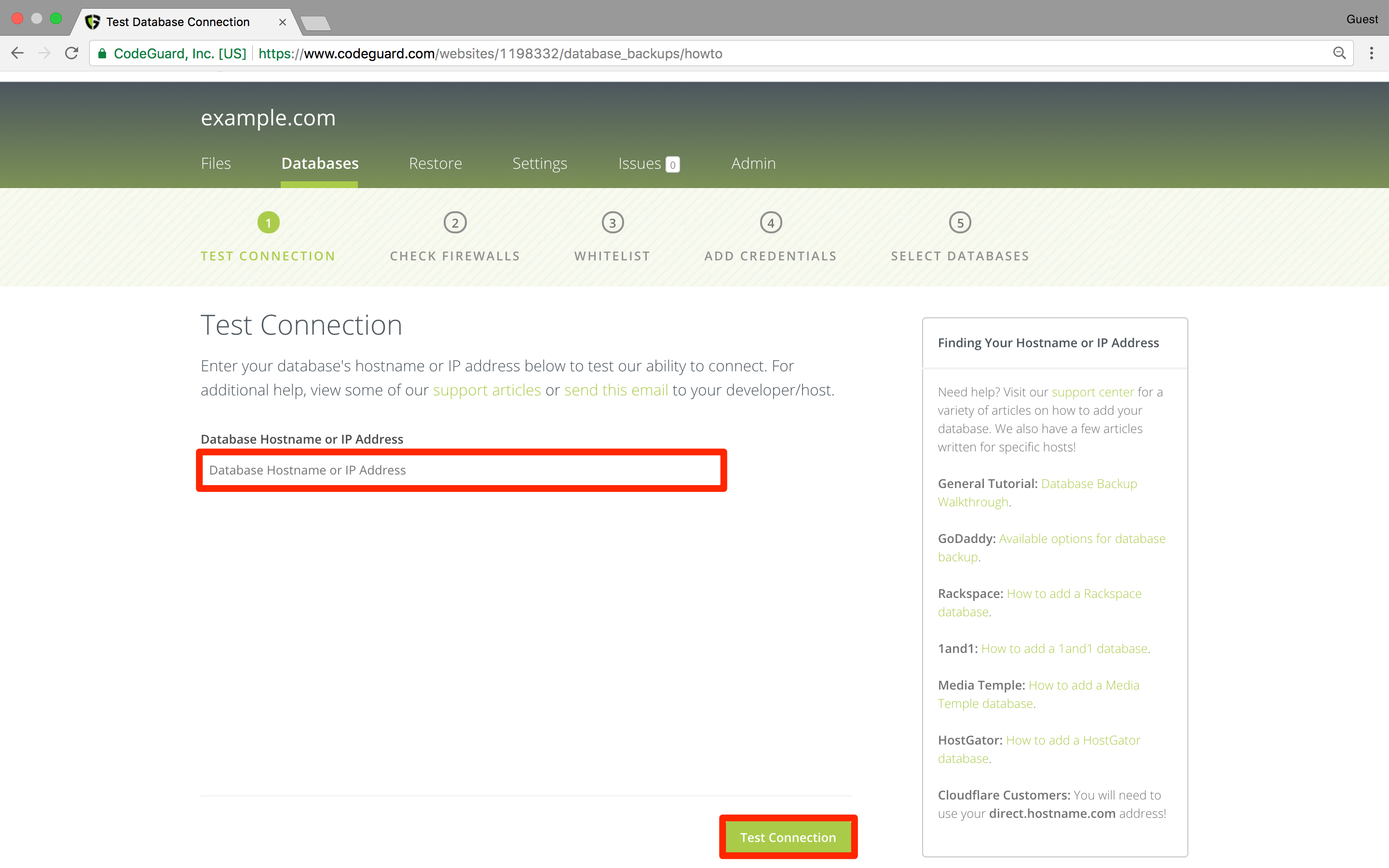
c) If the connection fails, you may need to whitelist CodeGuard IP addresses, or your hosting provider may not allow direct database connections. Alternatively, if you have SSH access to your website, you may be able to connect to the database using that method. Contact your hosting provider if you are unsure whether you have SSH access. Once you have whitelisted our IP addresses and they pass all checks, click "Next Step".
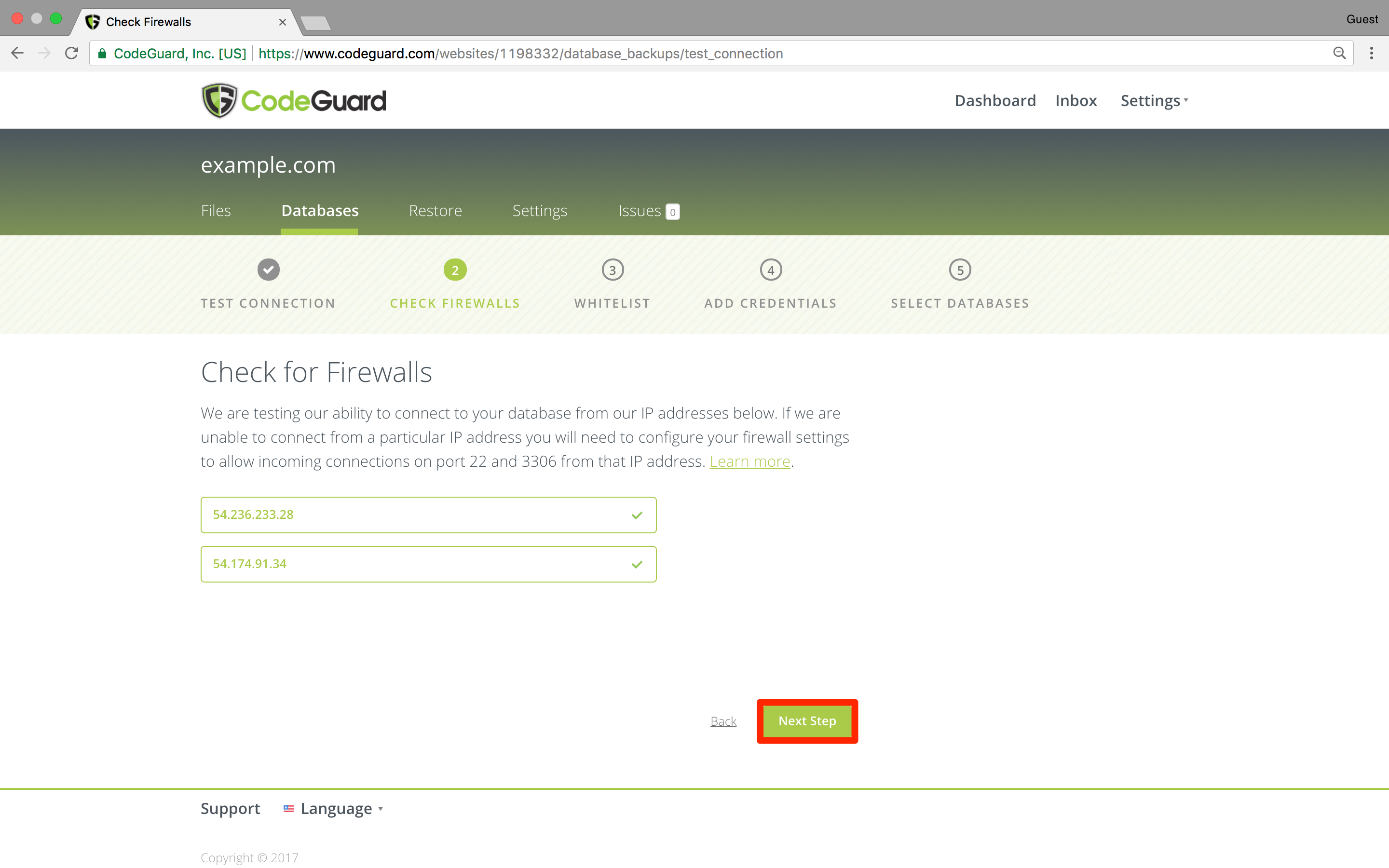
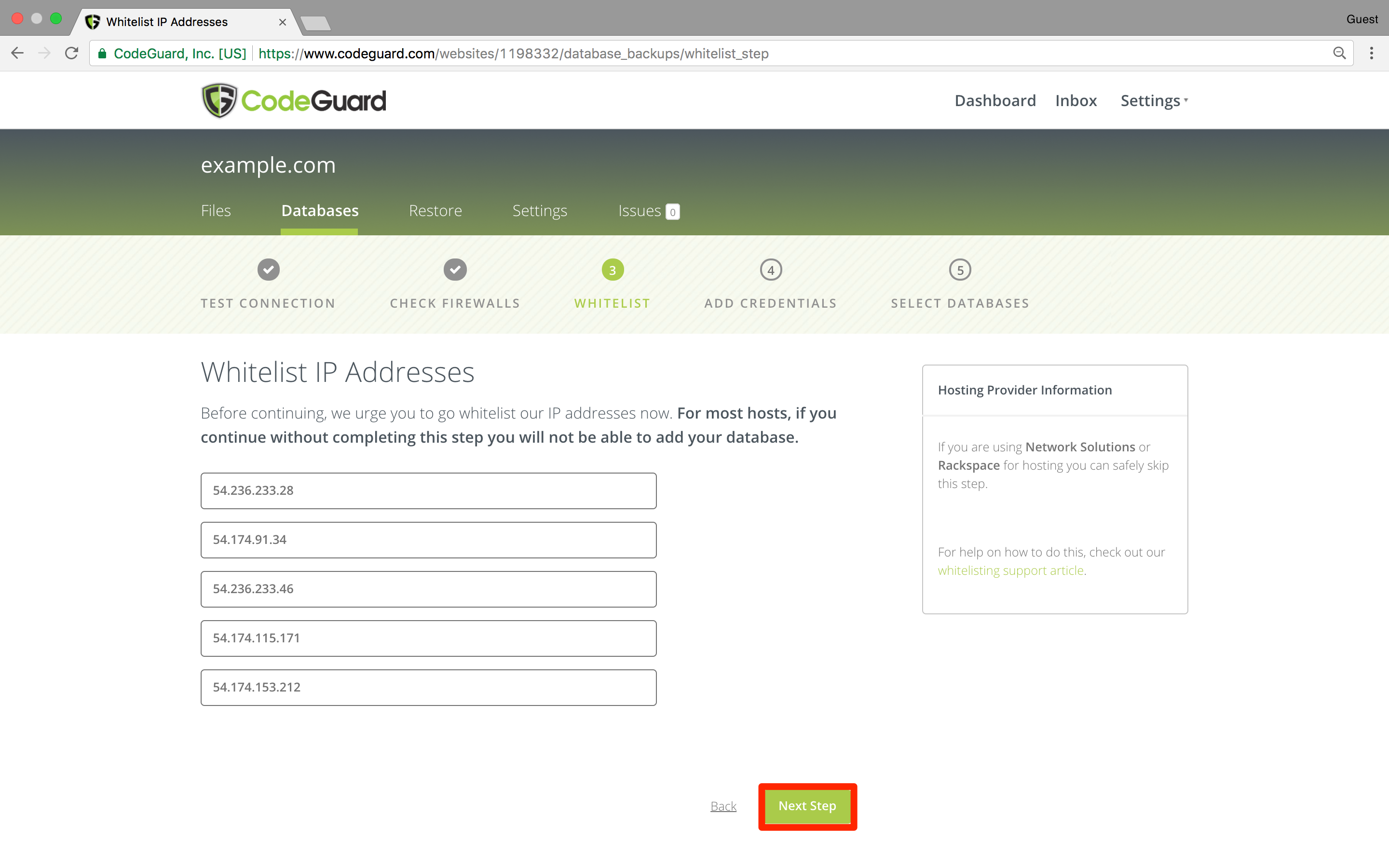
d) Once again, we would like to emphasize that it is very important that all CodeGuard IP addresses are properly whitelisted. If any of the listed IP addresses are not whitelisted, it is very likely that your hosting provider will block all CodeGuard connection attempts. If you have correctly whitelisted each IP address, click "Next Step".
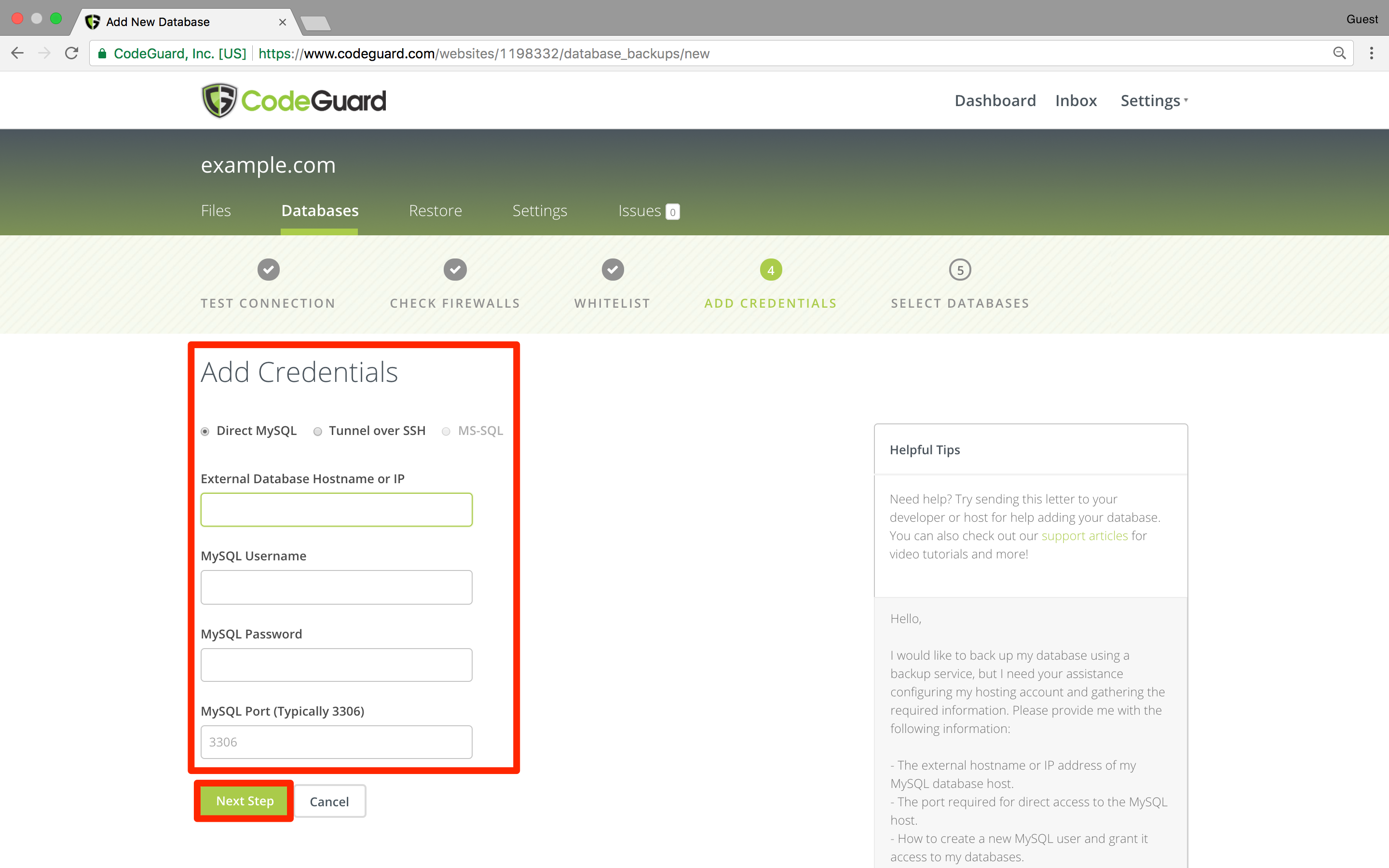
e) Add your credentials. Enter the information you found in Step 1. If your hosting provider supports SSH access, you may also enter your SSH credentials. Once you have entered the correct information, click the "Next Step" button to select your website’s database.
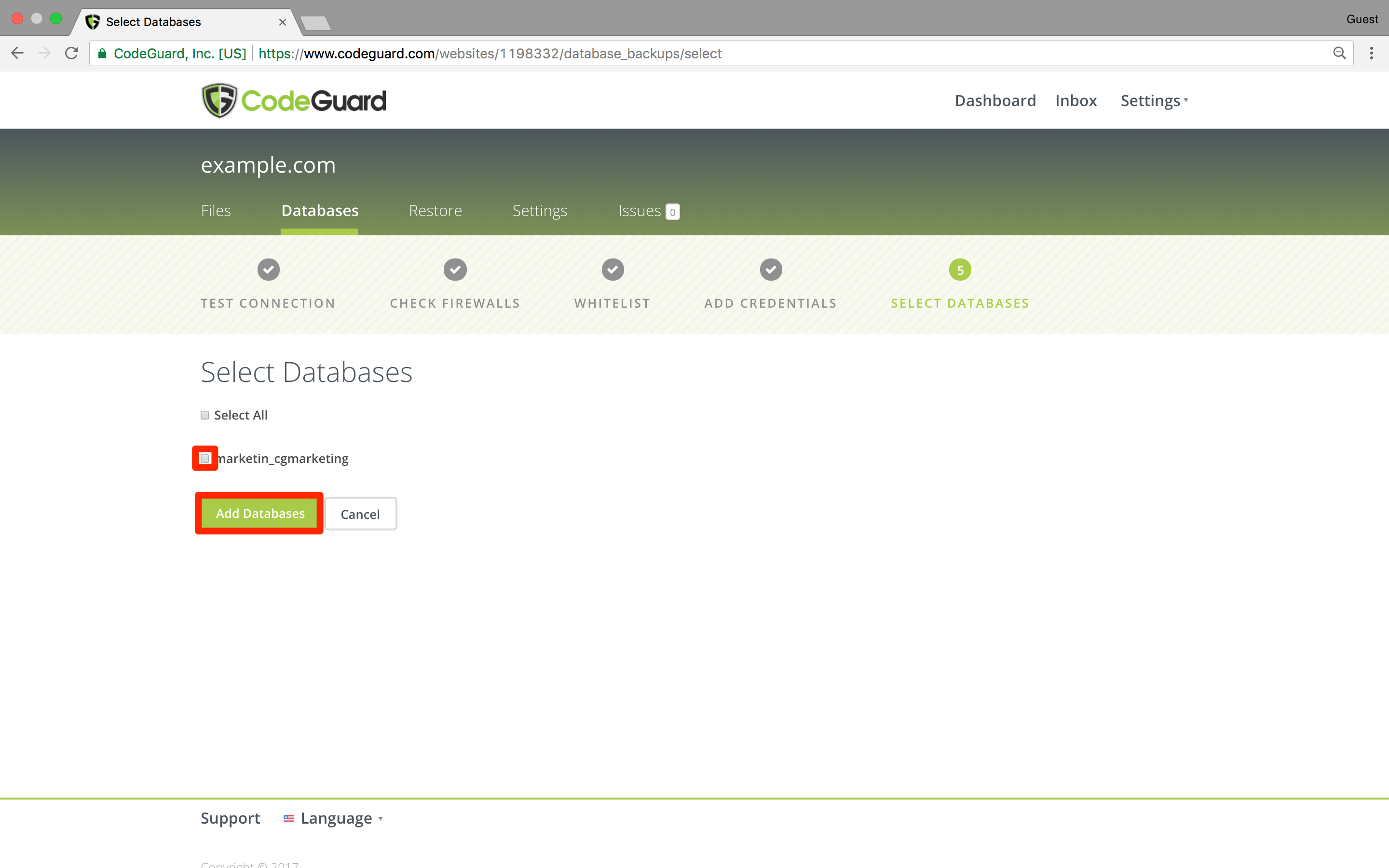
f) Finally, select the database you want to add and click "Add Databases" to begin creating your database backup. If your MySQL user has access to multiple databases, you will see a list of all databases here. You can select multiple databases on this screen to add them all at once. If your user does not have access to all databases you need to back up, you will need to repeat this entire process for each database. You can then monitor the progress of your database backup in CodeGuard.
That’s it! On the next page, you can monitor the progress of your database backup. Your website’s database backup is now being created securely and reliably every day with CodeGuard.