You have successfully activated your SSL certificate, but instead of the security padlock, the browser still tells visitors that your page is "Not Secure." The problem lies in the so-called "Mixed Content" error.
This happens when your site loads over the secure HTTPS protocol, but paths to certain elements within the code (such as images, CSS files, fonts, or scripts) remain on the old, insecure HTTP protocol.
Here is how to diagnose and permanently resolve this issue.
Step 1: Locating insecure elements on the page
Before fixing the error, you must know exactly which files are blocking the green padlock. You can do this in two ways:
Option A: Quick check using the SkyHosting tool
- Open the free tool Why No Padlock? on the SkyHosting website.
- Enter the URL of the page reporting the error and click on CHECK button to run the test.
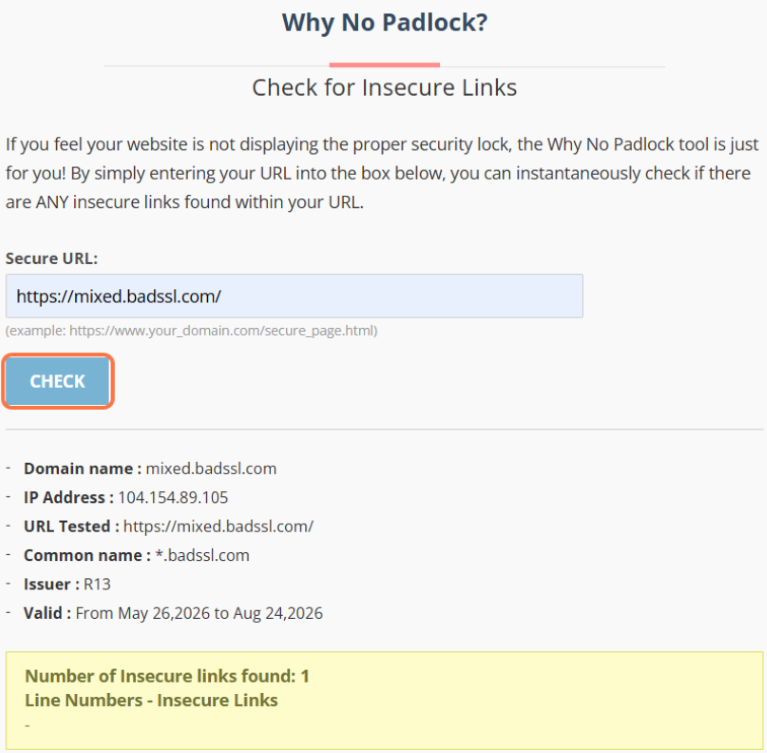
- The tool will thoroughly scan the page and list all elements loading via http://.
Option B: Manual check using the Browser Inspect tool
- Open the page with the error in Google Chrome (or a similar) browser.
- Right-click anywhere on the page and select Inspect (or press F12 on your keyboard).
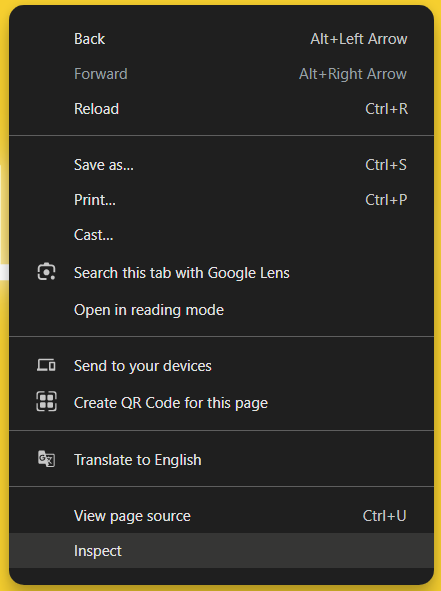
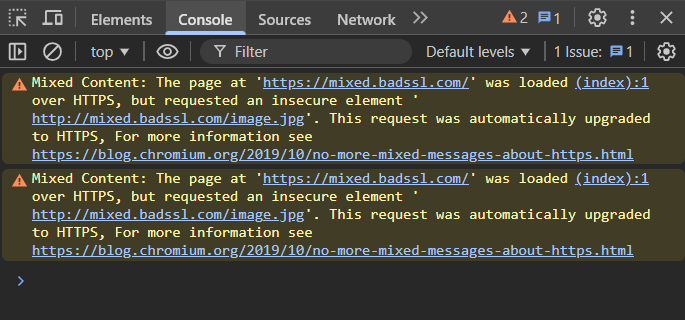
- In the developer panel that opens, click on the Console tab.
- Look for yellow or red warnings containing the text Mixed Content. Next to each warning, you will see the exact link (usually to an image) that is still using http://.
Step 2: Forcing HTTPS through cPanel
The first level of protection is ensuring the server automatically redirects all traffic to a secure connection.
- Log in to your cPanel account using this guide - How to access cPanel?
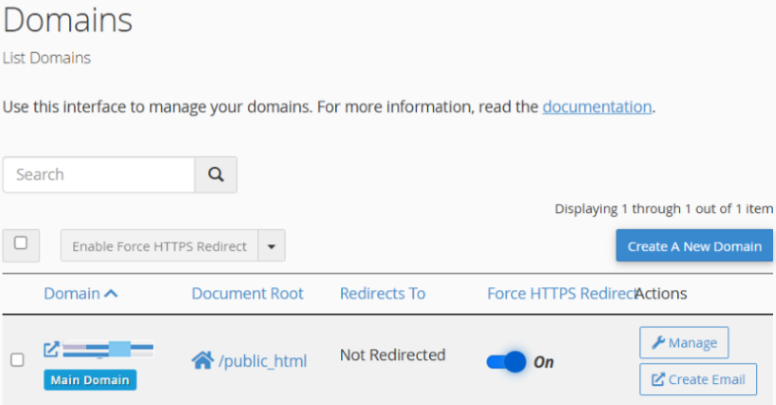
- In the Domains section, click on the Domains icon.
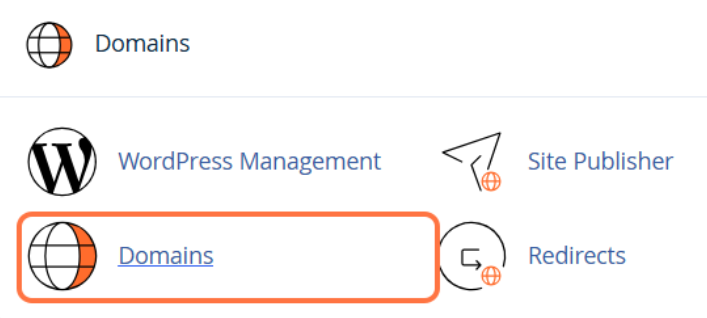
- Find your domain in the list.
- In the Force HTTPS Redirect column, toggle the switch to the On position.
Step 3: Updating links in the database (for WordPress)
Forcing through cPanel is often not enough if HTTP links remain "hard-coded" in the database.
- Log in to your WordPress Dashboard.
- Install the free plugin Better Search Replace (go to Plugins > Add Plugin).
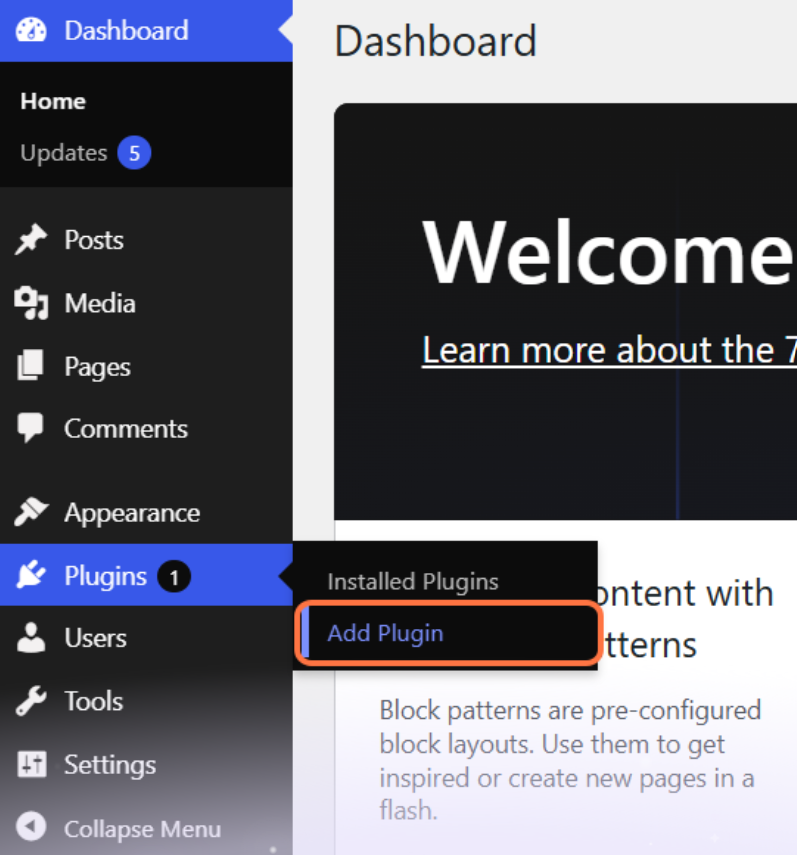
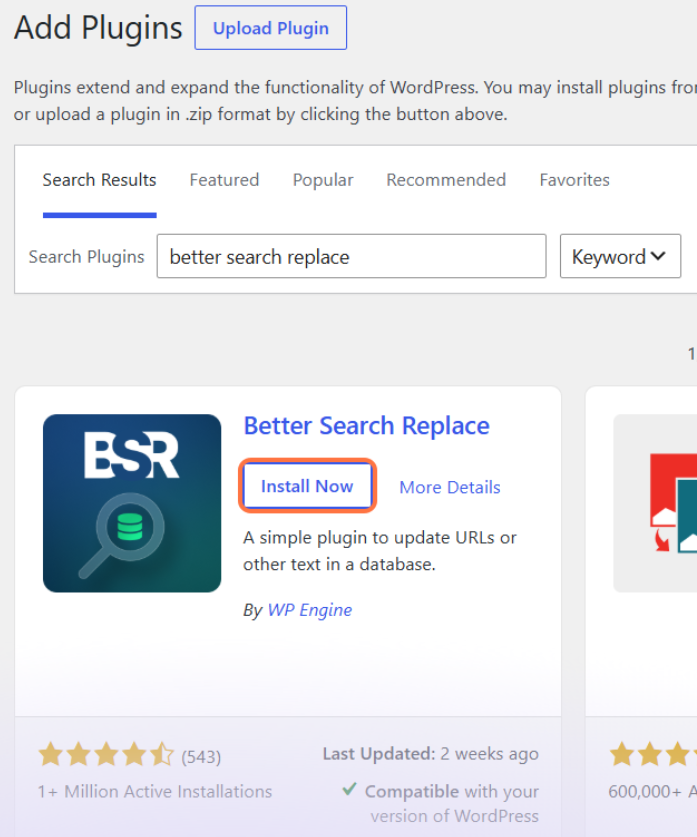
- In the Search Plugins field, search for the "better search replace" plugin and click Install Now then Activate.
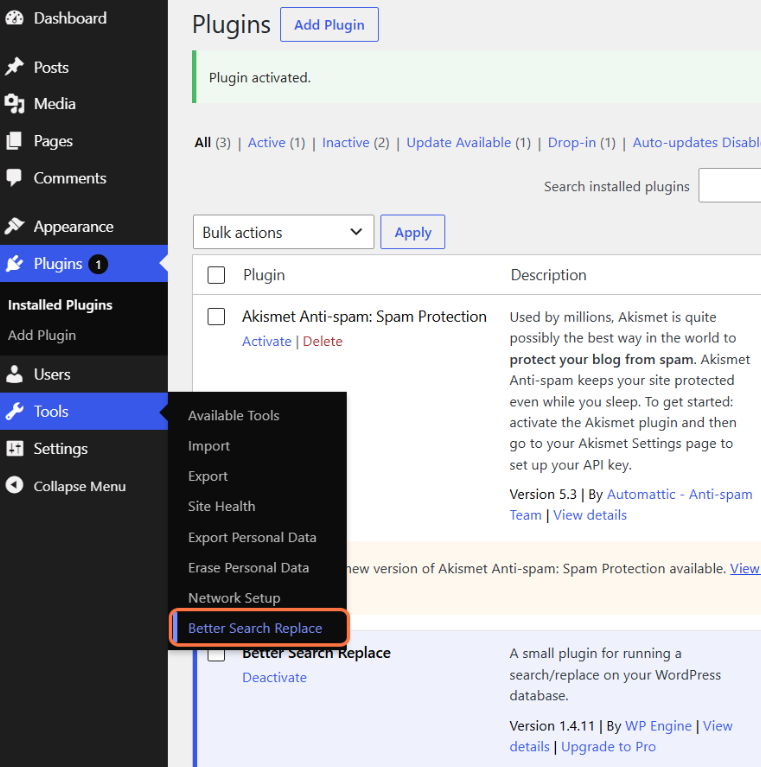
- In the left-hand menu, go to Tools > Better Search Replace.
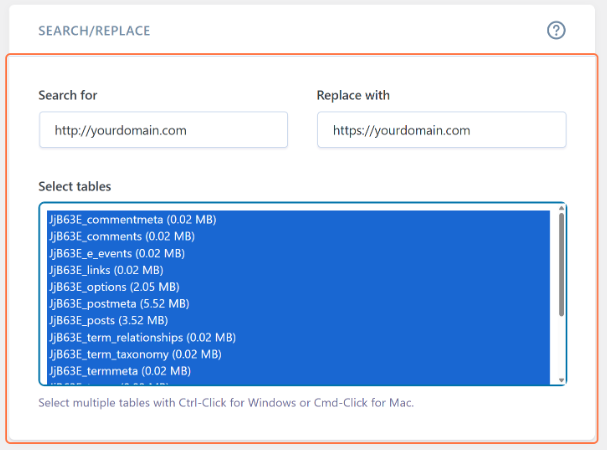
In the Search for field, enter your site's old address with the HTTP protocol (e.g., http://yourdomain.com).
In the Replace with field, enter the new secure address (e.g., https://yourdomain.com).
Select all tables in the Select tables window.
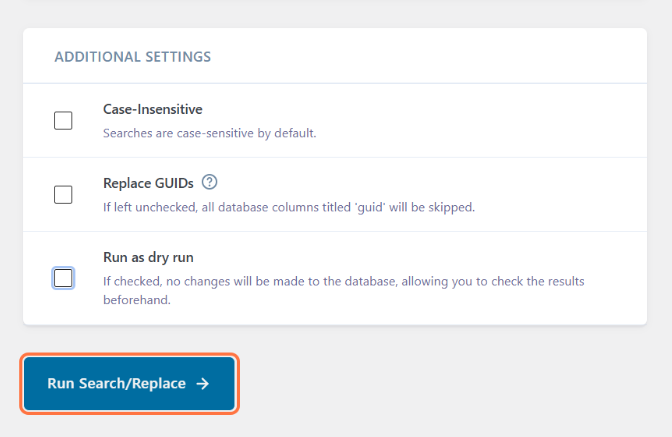
- Make sure to uncheck the "Run as dry run" option at the bottom of the page so that changes are permanently written to the database.
- Click on Run Search/Replace.
Once the process is complete, refresh your site and clear the cache. Your site will now display the secure green padlock.