
In newer versions of classic Outlook (Outlook 2021, Outlook 2024 and Microsoft 365), email accounts are added through a wizard that first tries to find the settings on its own. Because email on our servers is tied to your own domain, the most reliable way is to set the account up manually as an IMAP account. This guide walks you through it step by step, with the exact server settings.
Quick reference – server settings
Incoming (IMAP): mail.yourdomain.com, port 993, encryption SSL/TLS
Outgoing (SMTP): mail.yourdomain.com, port 465, encryption SSL/TLS
Username: your full email address (e.g. johndoe@yourdomain.com)
Password: the password of your email account
For POP3 and non-SSL ports, see Set Up Mail Client.
Before you start, you need to create an email account in your cPanel.
The screenshots in this guide show Outlook in English. If your Outlook uses another language, the option names will be translated, but the order of the screens and the layout of the fields are the same. If you use an older version (Outlook 2013 or 2016), see Setting Up an Email Account in Outlook 2013-2016.
Adding a new account
- Open Microsoft Outlook
- If a welcome screen asking for your email address appears (first launch of Outlook), continue with the next section
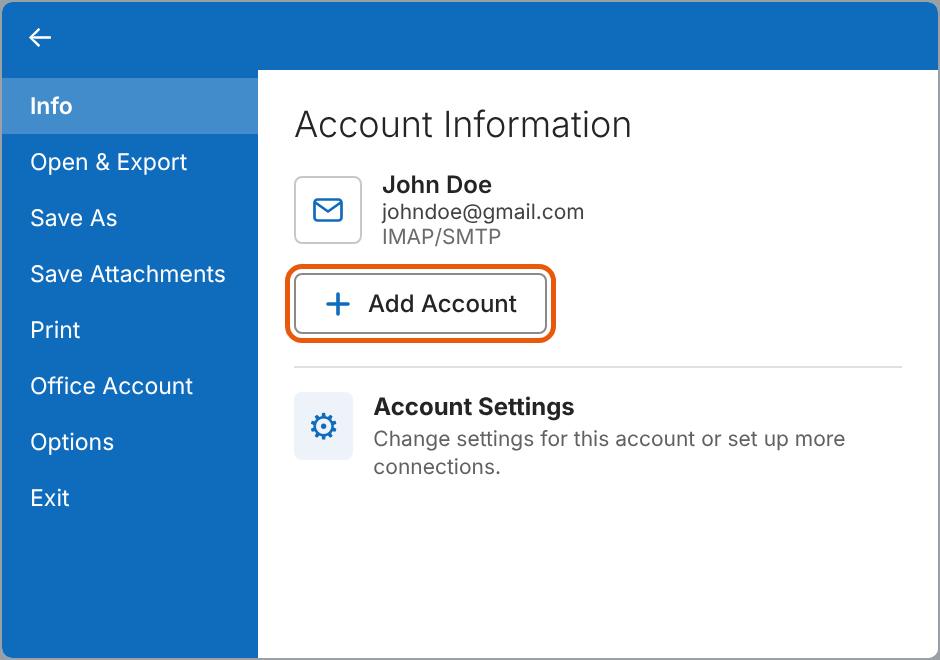
- If Outlook is already set up, click File, then Info in the left side menu
- Click Add Account
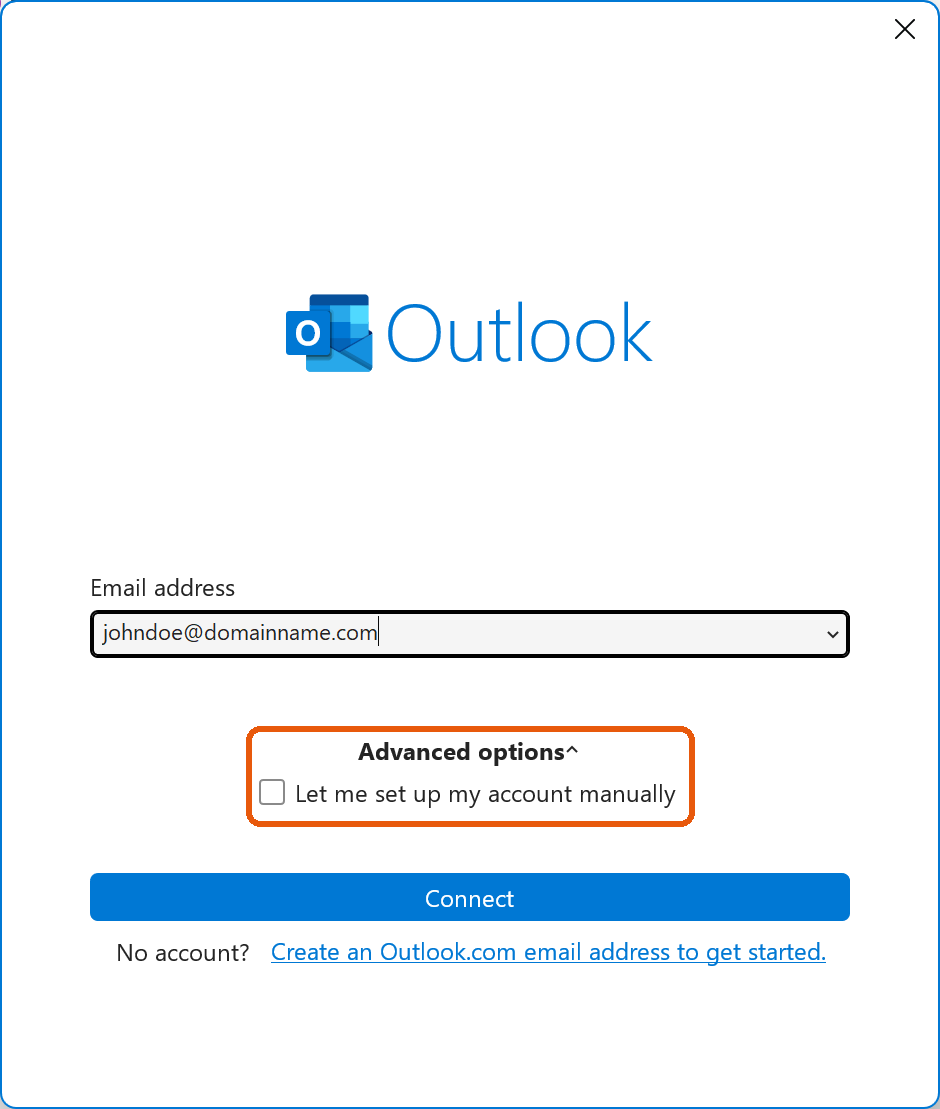
- In the Email address field, enter your full email address
- Click Advanced options to open the extra options
- Check Let me set up my account manually
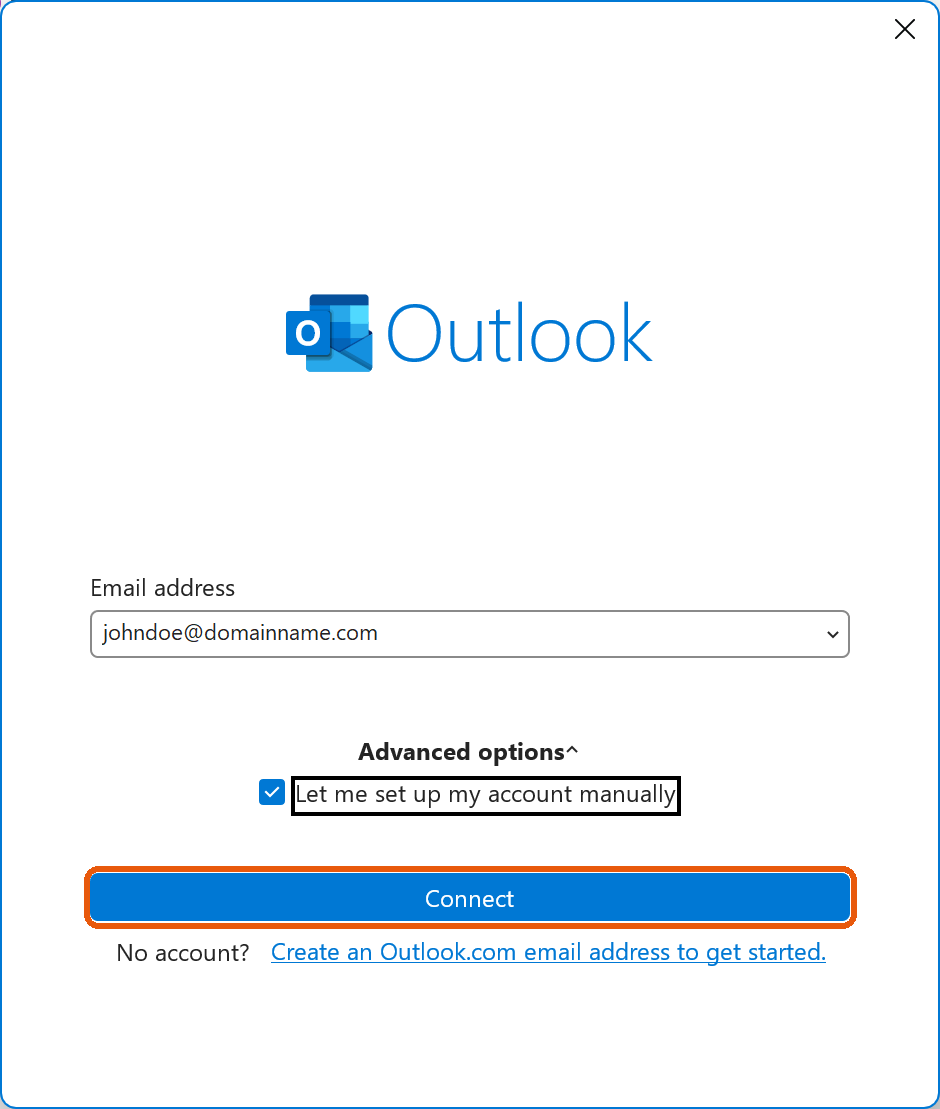
- With the option checked, click Connect
- On the account type screen, select IMAP
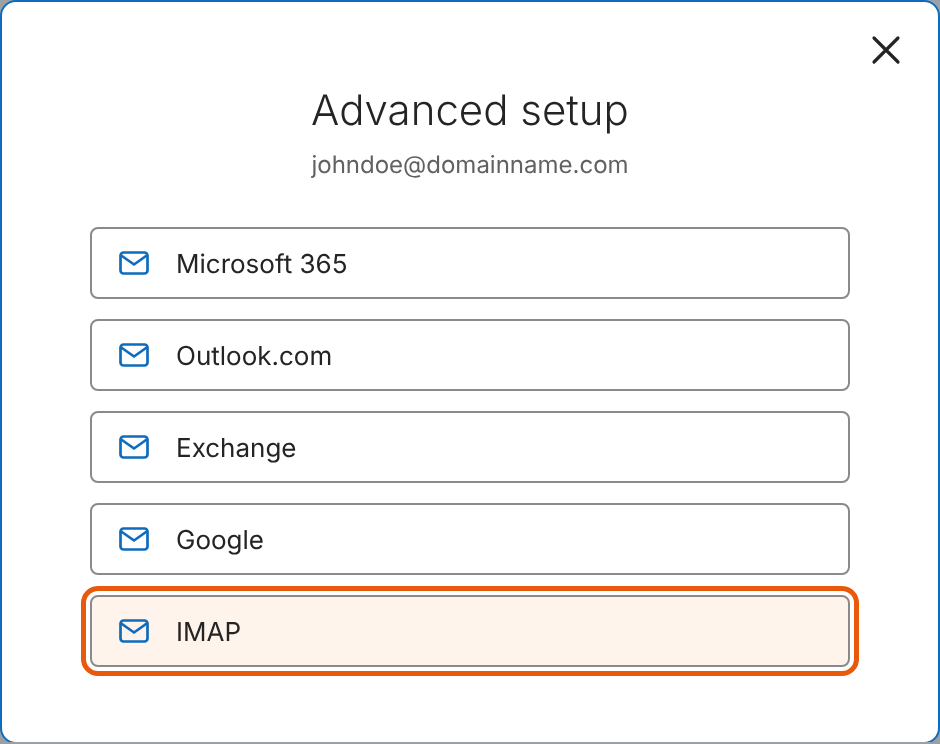
Why IMAP? With IMAP, your messages stay on the server and are synced across all your devices (computer, phone, webmail), which makes it the right choice in almost every case. POP3 downloads messages to a single computer and only makes sense if you read your mail on that computer alone.
Server settings
- On the IMAP Account Settings screen, enter:
- Under Incoming mail:
- Server: mail.yourdomain.com (replace yourdomain.com with your own domain)
- Port: 993
- Encryption method: SSL/TLS
- Under Outgoing mail:
- Server: mail.yourdomain.com (replace yourdomain.com with your own domain)
- Port: 465
- Encryption method: SSL/TLS
- Under Incoming mail:
- Leave Require logon using Secure Password Authentication (SPA) unchecked
- Click Next
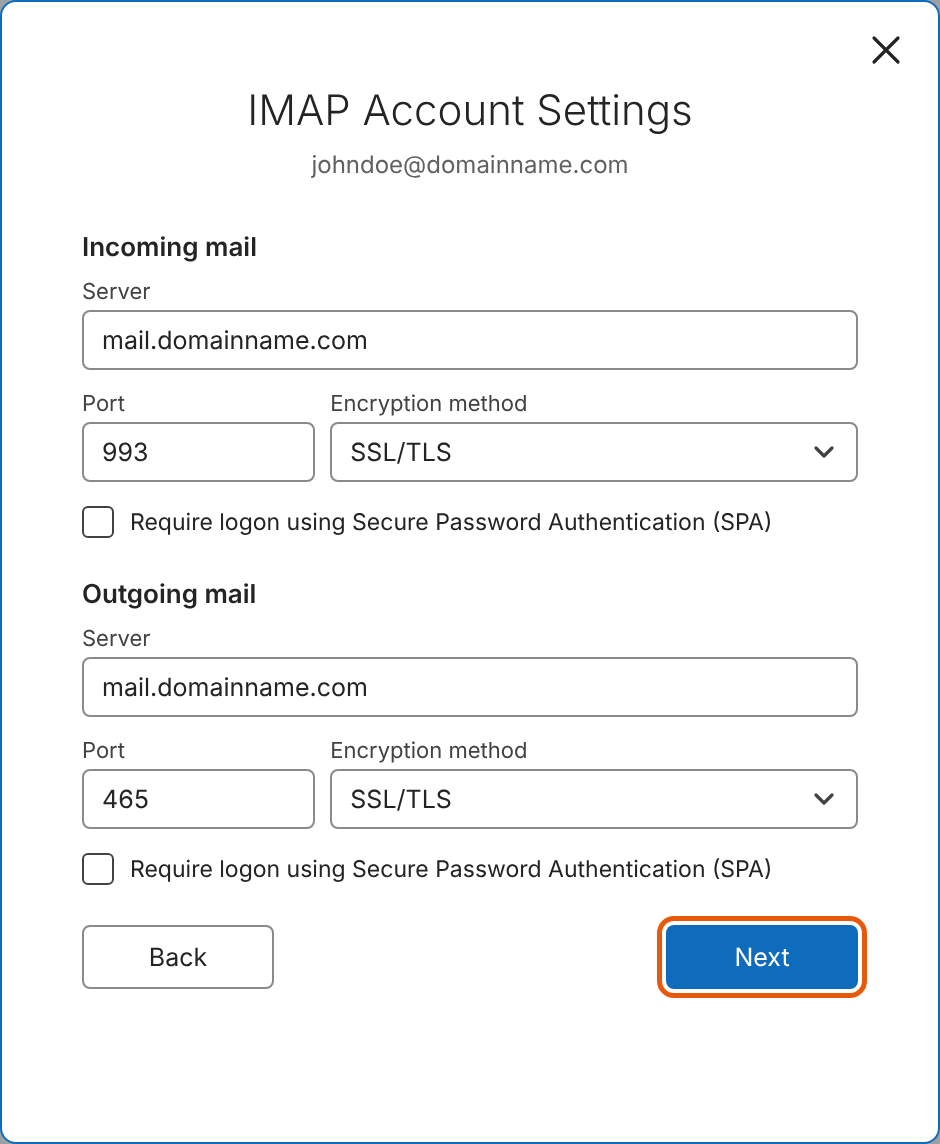
Note on ports and encryption: For IMAP, the incoming port is 993 and the outgoing (SMTP) port is 465, both with SSL/TLS encryption. If the dropdown also offers STARTTLS or Auto, do not choose it – SSL/TLS with the ports above is the correct setting for our servers.
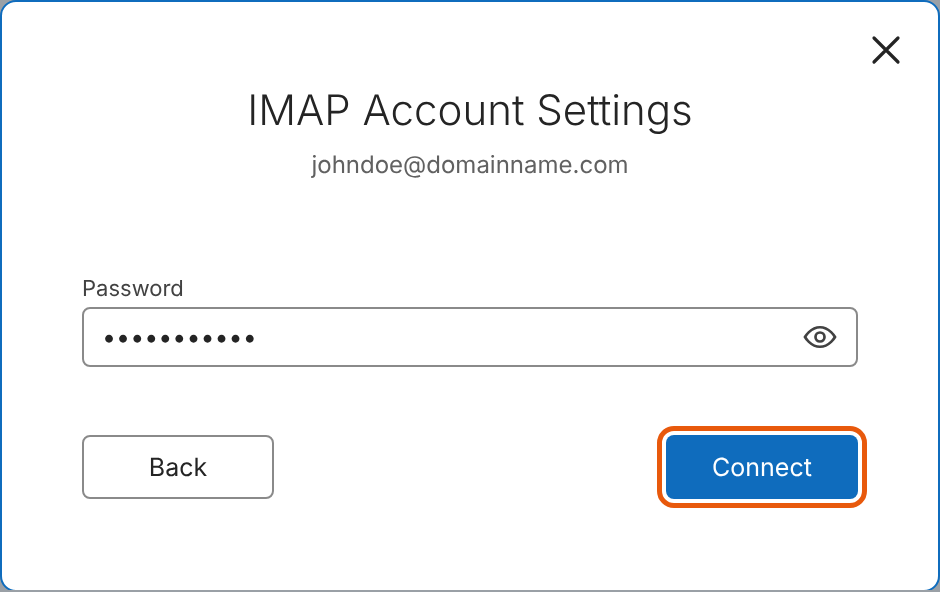
- Enter your email account password
- Click Connect
Certificate warning (Security Alert)
While connecting, Outlook may show a warning that the certificate of mail.yourdomain.com cannot be verified. This happens because the SSL certificate on our mail server is issued to the server's own hostname rather than to your specific domain – it does not mean your connection is insecure.
Click Yes to continue. Alternatively, you can enter the main server hostname provided in your cPanel welcome email in the Server fields. Your email traffic is still encrypted.
Finishing up
- When the message Account successfully added appears, the account is set up
- You can uncheck Set up Outlook Mobile on my phone, too if you do not need it
- Click Done
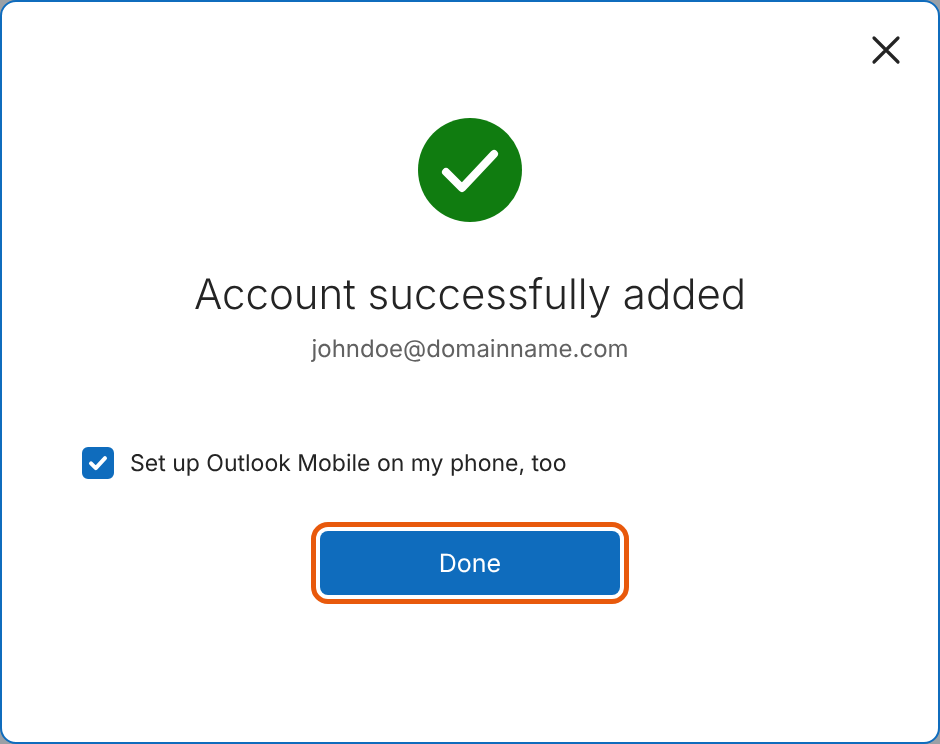
The account now appears in the account list on the left side of Outlook. Send yourself a test message to check that both receiving and sending work.
If the setup fails
- Outlook reports a wrong password: the username is always your full email address (johndoe@yourdomain.com), not just the part before the @ sign. You can check your password by signing in to webmail, and change it in cPanel under Email Accounts.
- Outlook cannot connect to the server: check that the server name is typed correctly (mail.yourdomain.com, no spaces) and that the ports and encryption match the quick reference (993 and 465, SSL/TLS).
- Receiving works, sending does not: check the outgoing server – port 465 and SSL/TLS encryption. If the account has already been added, click File > Account Settings > Account Settings, select the account and click Change.
- A "Something went wrong" message appears: choose Change Account Settings, correct the settings and click Connect again.
A note on POP3 and "new Outlook"
Newer versions of Outlook offer IMAP on the account type screen. If you need POP3, open Control Panel > Mail (Microsoft Outlook) > E-mail Accounts > New, choose Manual setup or additional server types and then POP or IMAP. The remaining steps are the same as in the Outlook 2013-2016 guide, and the incoming POP3 port is 995.
If you use the so-called new Outlook (the app with the "New Outlook" toggle), the screens look different, but the server settings are the same as in the quick reference at the top of this guide.
Related articles: Set Up Mail Client for the full list of ports and settings for all mail clients, Setting Up an Email Account in Outlook 2013-2016 and How do I create an email account on Android?
